
As a Great Teaching Coordinator or Assistant Coordinator, you are able to deactivate users in your organisation, and then you can re-use that licence. Simply head to the “School management" page of your account and click on the orange "Manage teachers" button. Hover over the three dots in the right-hand column, and click on the "Deactivate account" option.
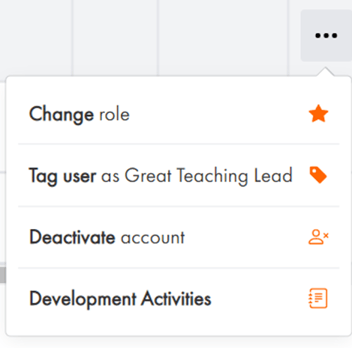
Once this is done, the deactivated account will no longer count towards your subscription. So if you have 10 registered accounts and deactivate one, you will then have 9 accounts remaining. For a new member of staff to enrol, you will then need to share with them the registration link that can also be found at the top of your "Manage teachers" page.
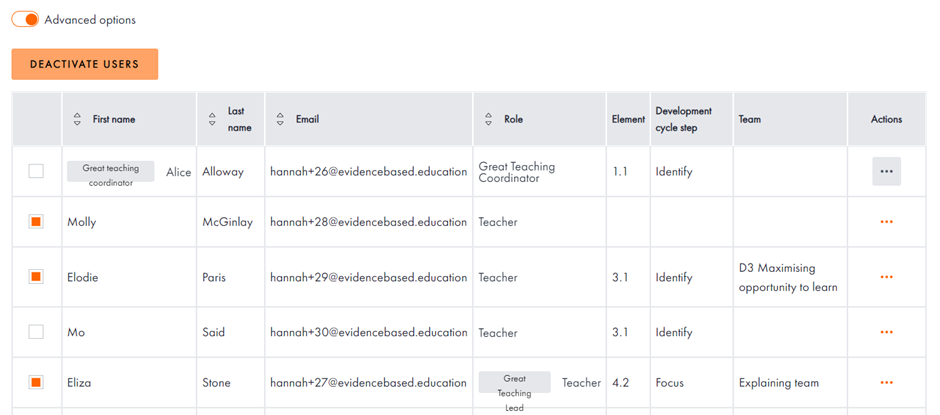
If you wish to deactivate more than one account, click the “Advanced options” toggle and select all those staff you wish to deactivate (as shown below). You can then click on the orange “Deactivate users” button to deactivate all selected accounts.
If you have used all of your licences and think you might need a few more before your subscription renews, please contact us at advisors@evidencebased.education and we'll be happy to help.