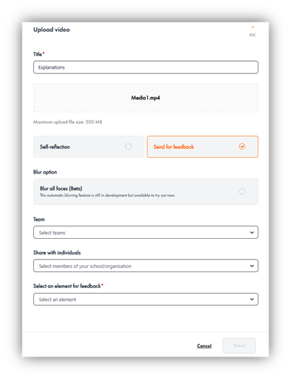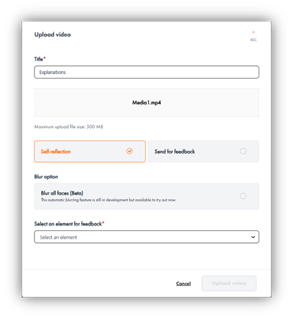
The video feedback tool in the Great Teaching Toolkit allows teachers to upload short clips of their classroom practice and use them as a basis for reflection and development. By watching your teaching back, you can notice details that are often easy to miss in the moment and focus on specific elements of great teaching. You can use the tool independently for self-reflection or share videos with colleagues to invite targeted, developmental feedback. This makes it a flexible and powerful way to deepen professional learning, refine techniques, and support ongoing improvement.
- Head to the ‘My feedback tools’ section of the platform, and select ‘Video tools’.
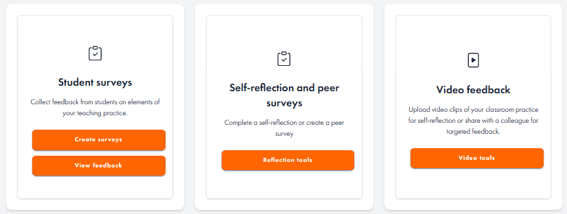
- On this page you’ll be able to view any videos you have previously uploaded and as well as videos colleagues have shared with you for feedback. Select ‘Upload video’ and you’ll be able to add a video up to 500MB. Give your video clip a name that will help you distinguish it from others (you might include a class, a subject or the name of the technique you are working on here).
- You’ll then be presented with option of uploading the video for self-reflection or sharing with a colleague for feedback. If you are uploading for self-reflection, it will only be saved in your account for now, but you can always choose to share with colleagues at a later date. At this point, you’ll also be able to choose to blur the faces in the video.
- Select an element of great teaching you would like to focus on for your self-reflection or your colleague feedback. For those seeking feedback, you’ll be able to choose if you want to send the video to a great teaching team or to individual colleagues.