
Any teacher can set up a team. Simply go to your Great Teaching Teams page and select the orange ‘Create a team’ button in the top right-hand corner. Here you’ll be prompted to:
- Set a team name
- Add colleagues you want to include in the team
- Select a focus area from the Model for Great Teaching
You can select ‘No focus area’ if you’re not collaborating on a single shared focus or you have yet to decide what this will be - Briefly describe what you’re working on
- Select ‘Save’
Once your team has been created, it will appear on your Great Teaching Teams page and will also be visible to any colleagues you’ve added to the team. If there are no Great Teaching Leads in your team, you’ll see that it simply states ‘run by its members’ and nobody in your team will be able to view the detailed Development Cycles information.
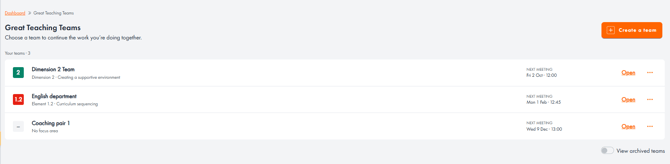
A Coordinator or Great Teaching Lead can set up a team in exactly the same way. In addition to the above information, you’ll be asked if you want to name any other team members as the Great Teaching Lead for that group.
Coordinators and Assistant Coordinators can see an overview of all teams set up in their school or college by going to their ‘School Management’ tab. Then selecting ‘Teacher accounts’ and scrolling to the bottom of the page. You can also set up new teams here by selecting the ‘Create team’ button, edit existing teams, or archive those that are no longer in use by clicking on the three orange dots.
Adding someone to a team does not automatically notify then. Great Teaching Leads and Coordinators can notify their team members by email, by selecting the three orange dots and choosing ‘Notify members’. Only those who have not already been notified will receive a reminder.