
The peer feedback tool in the Great Teaching Toolkit allows you to ask for insights about your teaching practice from colleagues. Feedback is based on a specific element or dimension of great teaching, so you should only ask colleagues who are familiar with your practice. You will be offered the opportunity to set up a peer feedback survey at the beginning of a development cycle. Alternatively, they can be accessed through ‘My feedback tools’.
- Head to the ‘My feedback tools’ section of the platform, and select ‘Reflection tools’ under ‘Self-reflection and peer surveys’.
- Under ‘Start a new peer survey’, select your chosen dimension or element. You'll be offered the opportunity to preview the statements your colleague will be presented with here. If you're happy with the survey, click ‘Generate survey’.
- Click ‘Copy link’ and then send the link to your chosen colleague or colleagues.
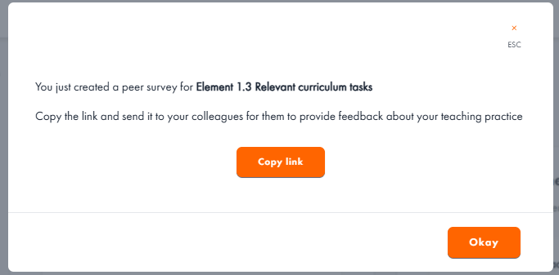
- The screenshot below shows how this will appear to your colleague when they open the link. They do not need to be logged into the GTT to do this.
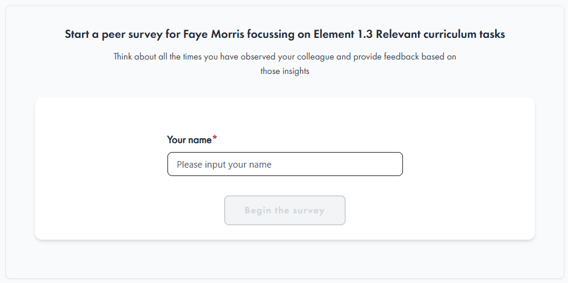
- They’ll then be asked to respond to a series of statements about your practice, indicating how strongly they agree or disagree. These statements will align with those found in the self-reflection survey.
- Once they have completed the survey, you will be able to see the results. Click on the completed peer survey to view your feedback on an interactive chart (you also have the option to download it as a pdf). This feedback data can only be viewed by you, unless you choose to share it.
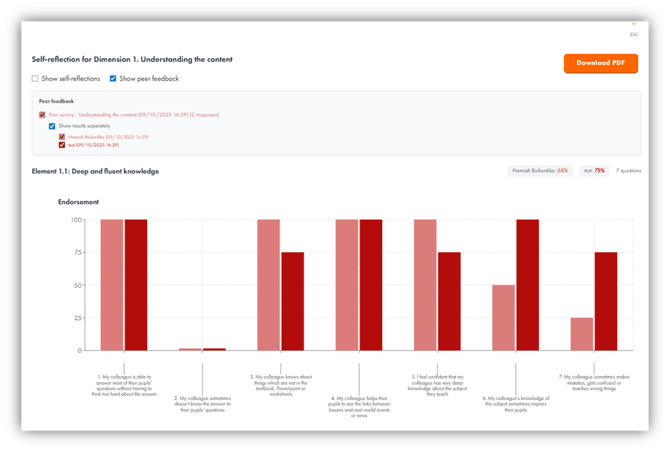
If you have received feedback from more than one colleague, you can choose how this information is displayed on the graph. You may view the combined average feedback across reviewers, or display feedback from individual colleagues separately. Simply tick the relevant boxes to select the information you would like to see.